
 Image 1 of 1
How Lumé Flow Works
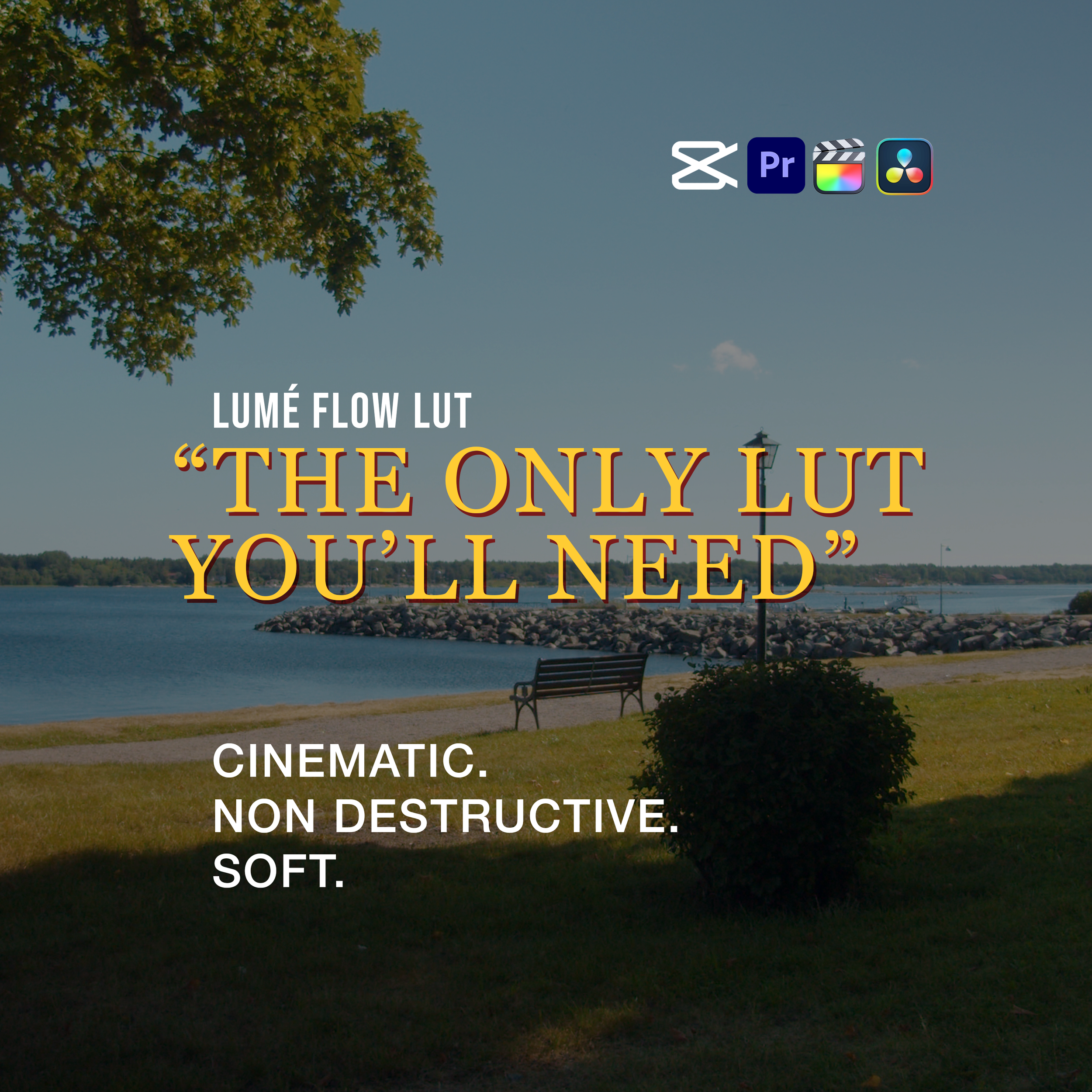
Lumé Flow is meant to sit at the end of your Rec.709 workflow. Once your footage is correctly converted from LOG to Rec.709, the LUT applies subtle tonal shaping and color refinement. If the effect feels too strong, simply dial it backusing the intensity/mix slider. The LUT is designed to be flexible, giving you creative control without locking you into a heavy grade.
Camera-Specific LOG-to-Rec.709 Versions
You get camera-tailored versions that convert LOG footage to Rec.709 and apply the Lumé Flow look in one step. Each is calibrated to the unique gamma/gamut response of its camera system for consistent, predictable results:
Canon
C-Log2 → Rec.709 + Flow
C-Log3 → Rec.709 + Flow
Sony
S-Log2 → Rec.709 + Flow
S-Log3 → Rec.709 + Flow
Panasonic
V-Log → Rec.709 + Flow
Apple iPhone
Apple Log / Apple Log-2 → Rec.709 + Flow
Look-Only Version
A universal “look-only” LUT is included. This version applies only the aesthetic look, without expecting any specific color space:
Perfect for:
Rec.709 footage
Drones
GoPros
Action cams
iPhone SDR
Mixed camera sources
Existing grades / semi-graded clips
Editors who prefer to manage their own CST or color transforms
Summary
Lumé Flow is built for creators who want professional, cinematic color without overworking their grade. With dedicated LOG→Rec.709 conversions for Sony, Canon, Panasonic, and iPhone—plus a flexible look-only version—you get a clean, consistent result no matter what you shoot on. Easy to install, easy to control, and always beautifully filmic.
LICENSE AGREEMENT UPON PURCHASE
✔ Use in your own commercial & personal projects
✔ Install on your own devices
✖ Don’t share, upload, or resell the files
✖ Don’t recreate or modify them for sale
✖ No refunds after download unless a technical issue caused by Wulff Media AB prevents access to the product
All rights belong to Wulff Media AB
Installation Instructions
Adobe Premiere Pro
- Open the Lumetri Color panel- Under Creative, click Look → Browse…
- Select the Lumé Flow .cube
- Adjust intensity using the slider if needed
(For permanent installation, place LUTs here:
Documents/Adobe/Common/LUTs/Creative/)
Final Cut Pro
- Select your clip
- Add the Custom LUT effect
- Under the Inspector, click Add Custom LUT…
- Import the .cube file
- Set LUT Input to Rec.709 (or leave automatic for LOG→709 versions)
- Adjust the Mix slider to refine the strength
CapCut
- Import your clip
- Open the Adjustment panel
- Scroll to LUT
- Tap Import LUT
- Select the Lumé Flow .cube
Lower the intensity if you prefer a softer result